
If you created a data file using Excel, you can use the following steps to convert the file to pipe-delimited text file. If this is your first time creating a file you may need to configure your computer to use the ‘|’ (pipe) character, rather than a comma, when converting the file.
Open the file in Excel and make sure there is a column header for all data elements, including any optional fields
Delete all worksheets other than the one with your data
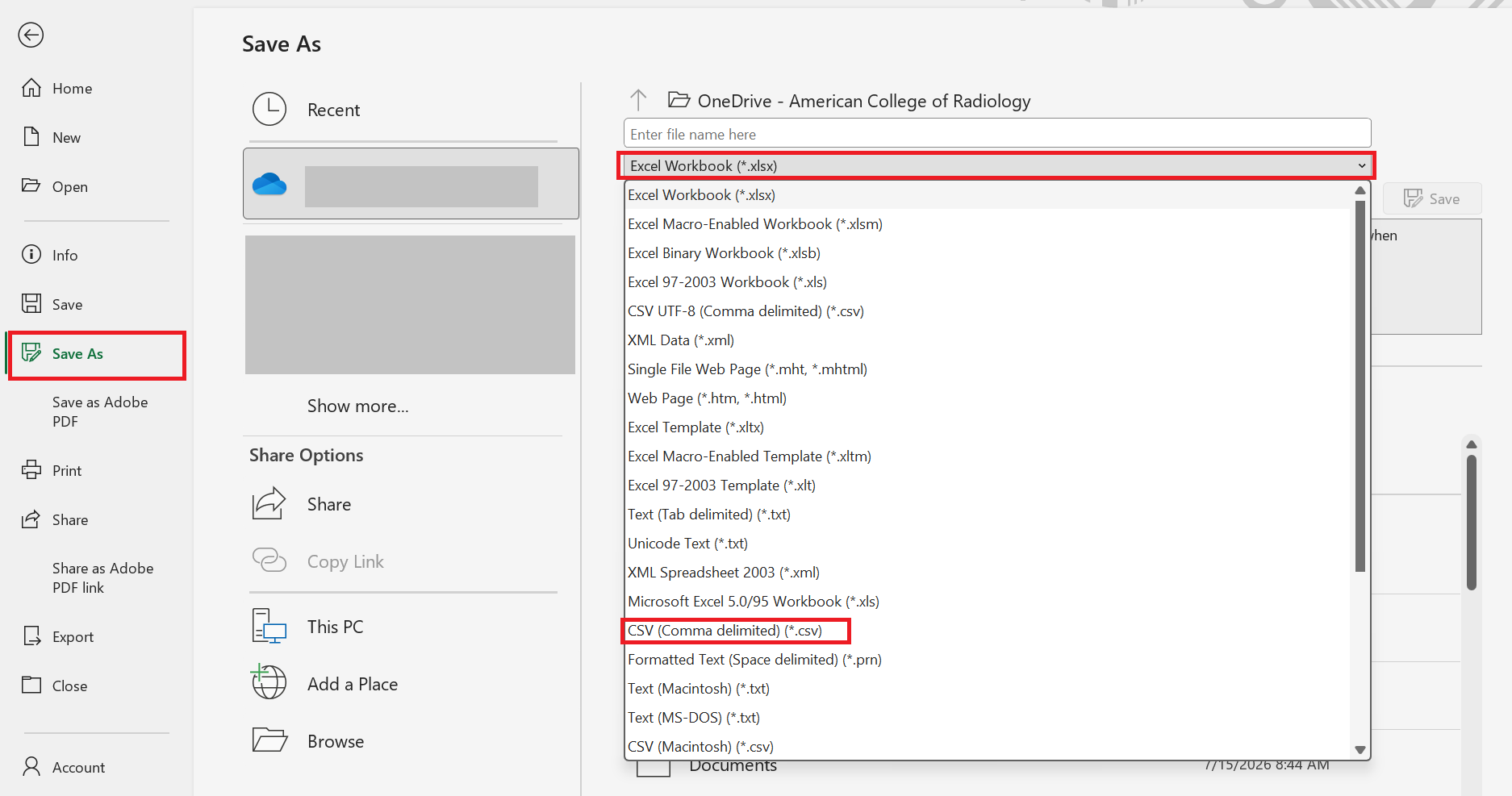
Select File > Save As
Choose the location where you want to save the file
In the Save as type drop-down menu, select: CSV UTF-8 (Comma delimited) (*.csv)
- Click Save
Find the file you just saved, right click on it and rename it so the file extension is .txt rather than .csv
Note: If you cannot locate the file you just saved, and cannot see the file extension ending with .csv then use these instructions to change your computer’s display settings
After changing the file extension to .txt you may receive a warning message:
If you change a file name extension, the file might become unusable.
Click Yes to continue.
Once your document is in .txt format you may upload it to the registry.
 | Previous: Web-based Data Transmission | Next: Change Windows Settings to Show Filename Extensions |  |